> ## Documentation Index
> Fetch the complete documentation index at: https://ampersand-24eb5c1a-mintlify-9a8a4289.mintlify.site/llms.txt
> Use this file to discover all available pages before exploring further.
# Gong
## Checklist before you start
Confirm the following:
* You are a Gong **Technical Administrator** (the role required to create automation rules and configure outbound webhooks).
* Your developer has provided you with a **webhook URL** in this format:
```
https://subscribe-webhook.withampersand.com/v1/projects/PROJECT_ID/integrations/INTEGRATION_ID/installations/INSTALLATION_ID
```
## Set up webhooks for real-time updates (Subscribe Actions)
To send `call.created` events to your developer's application, you'll create an **automation rule** in Gong that fires a webhook each time a call is processed.
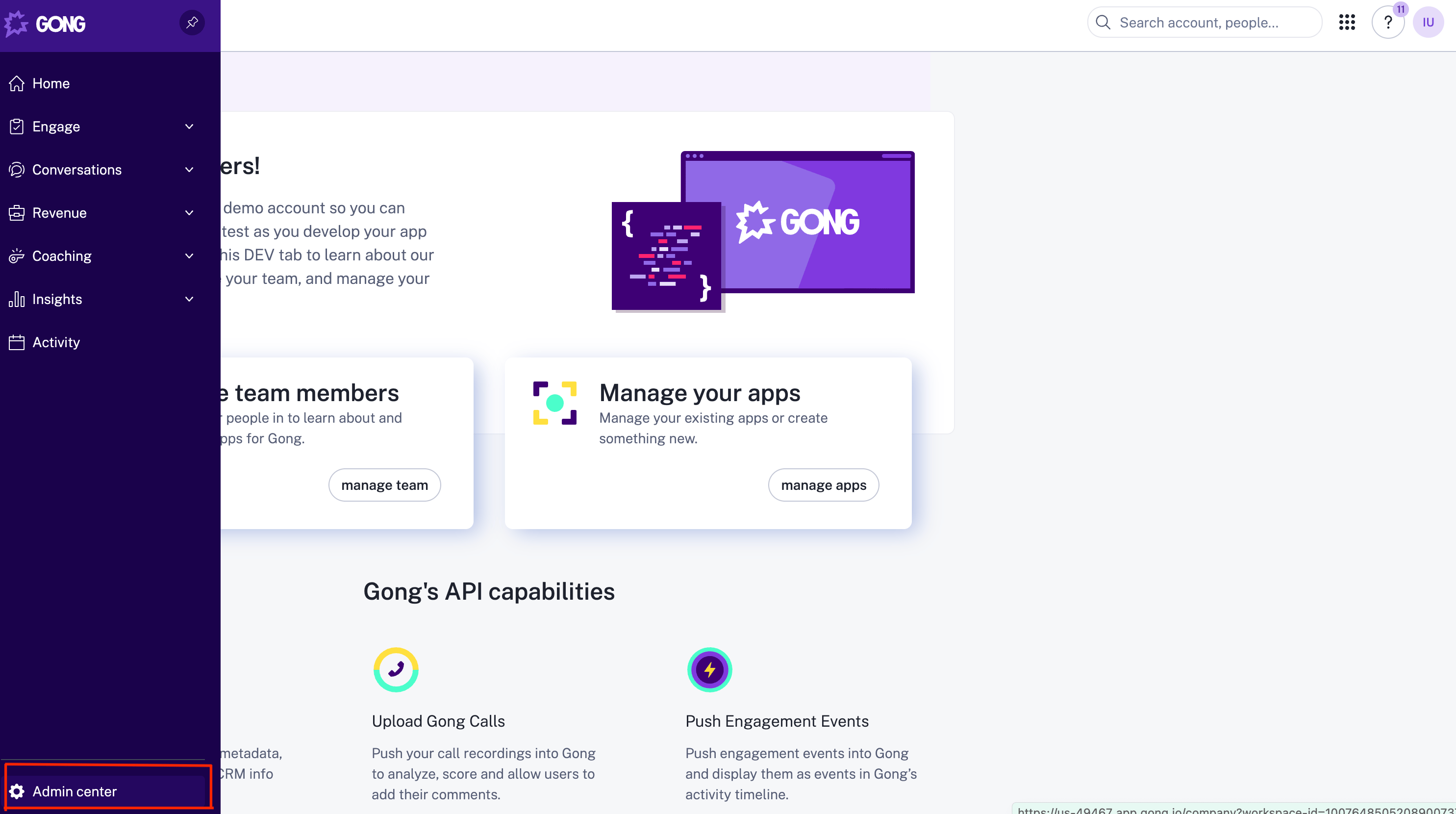
1. Sign in to Gong and open **Admin Settings** in the left sidebar.
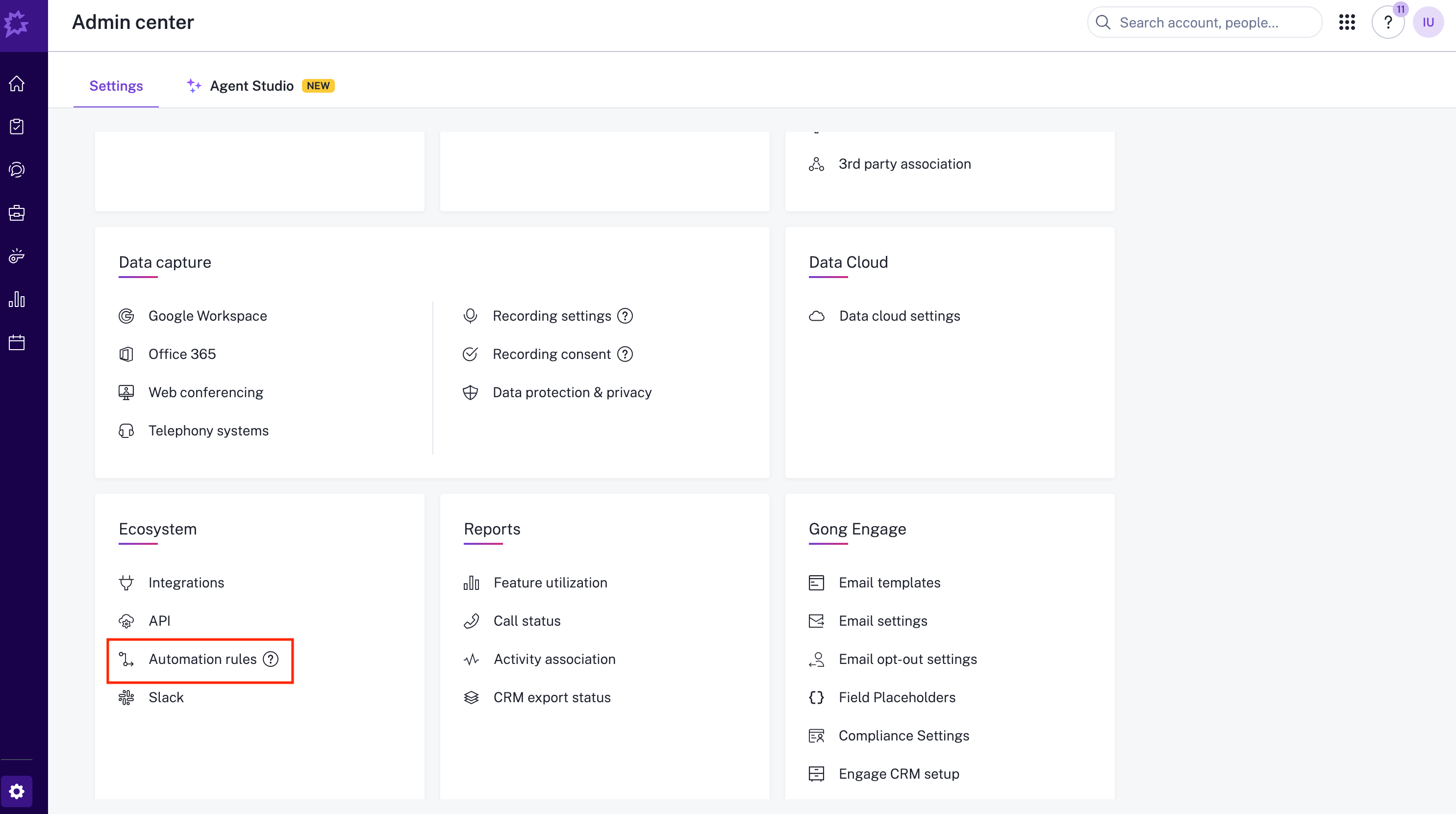
 2. In the left sidebar, navigate to **Automation rules**.
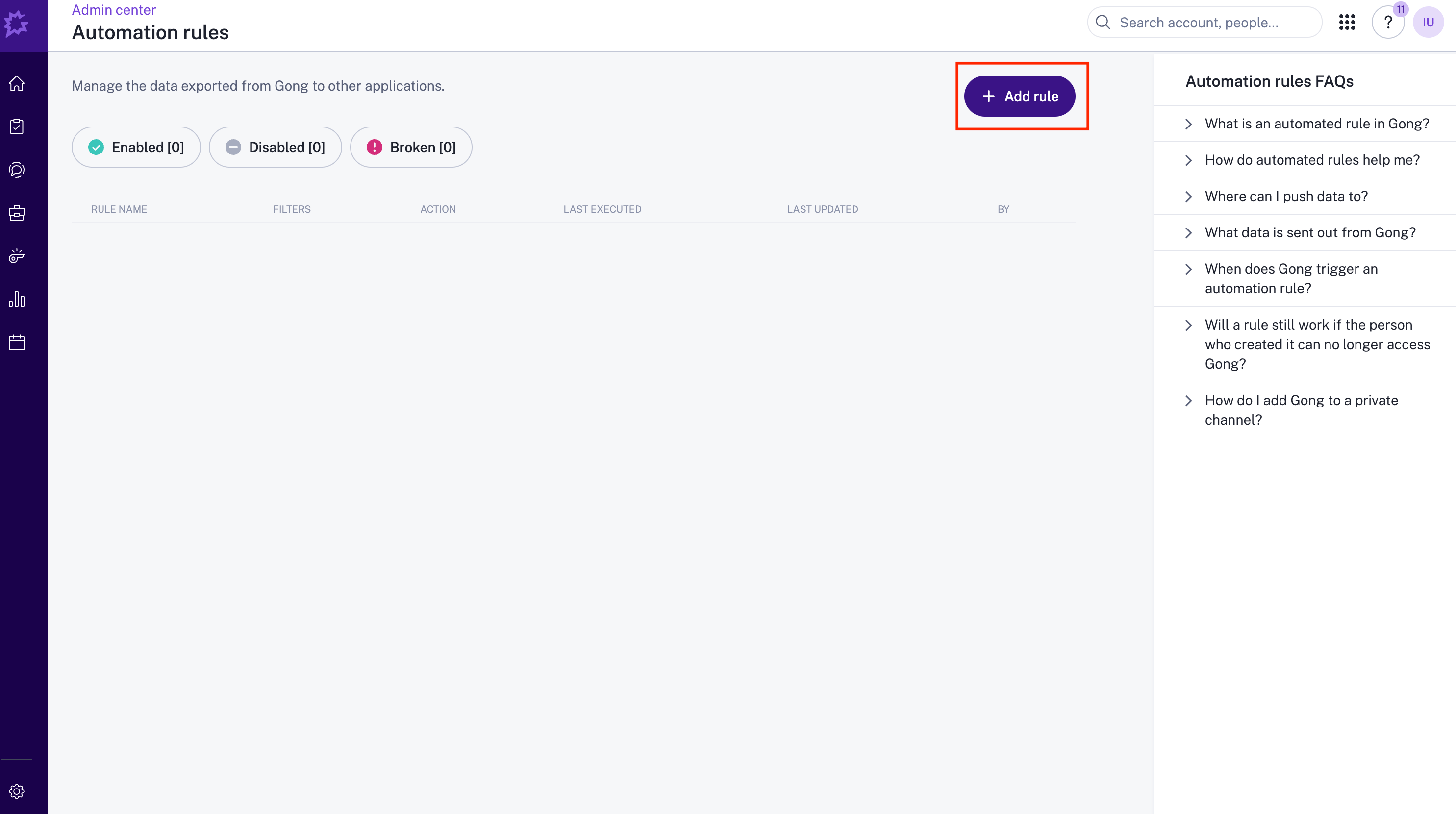
 3. Click **Add rule**.
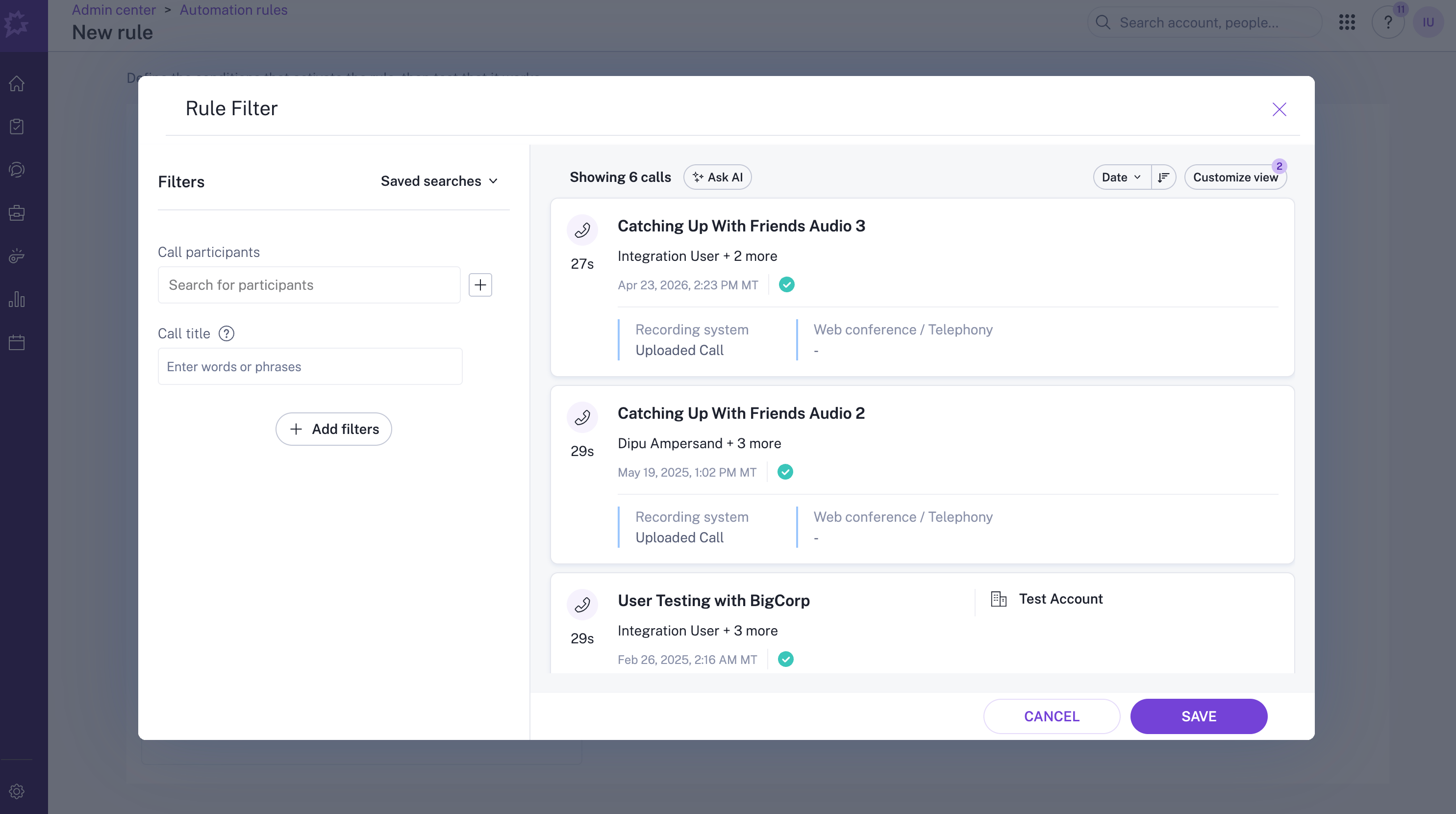
 4. (Optional) Add any filters you'd like to apply — for example, restrict the rule to specific participants. Leave the filters empty to send every new call.
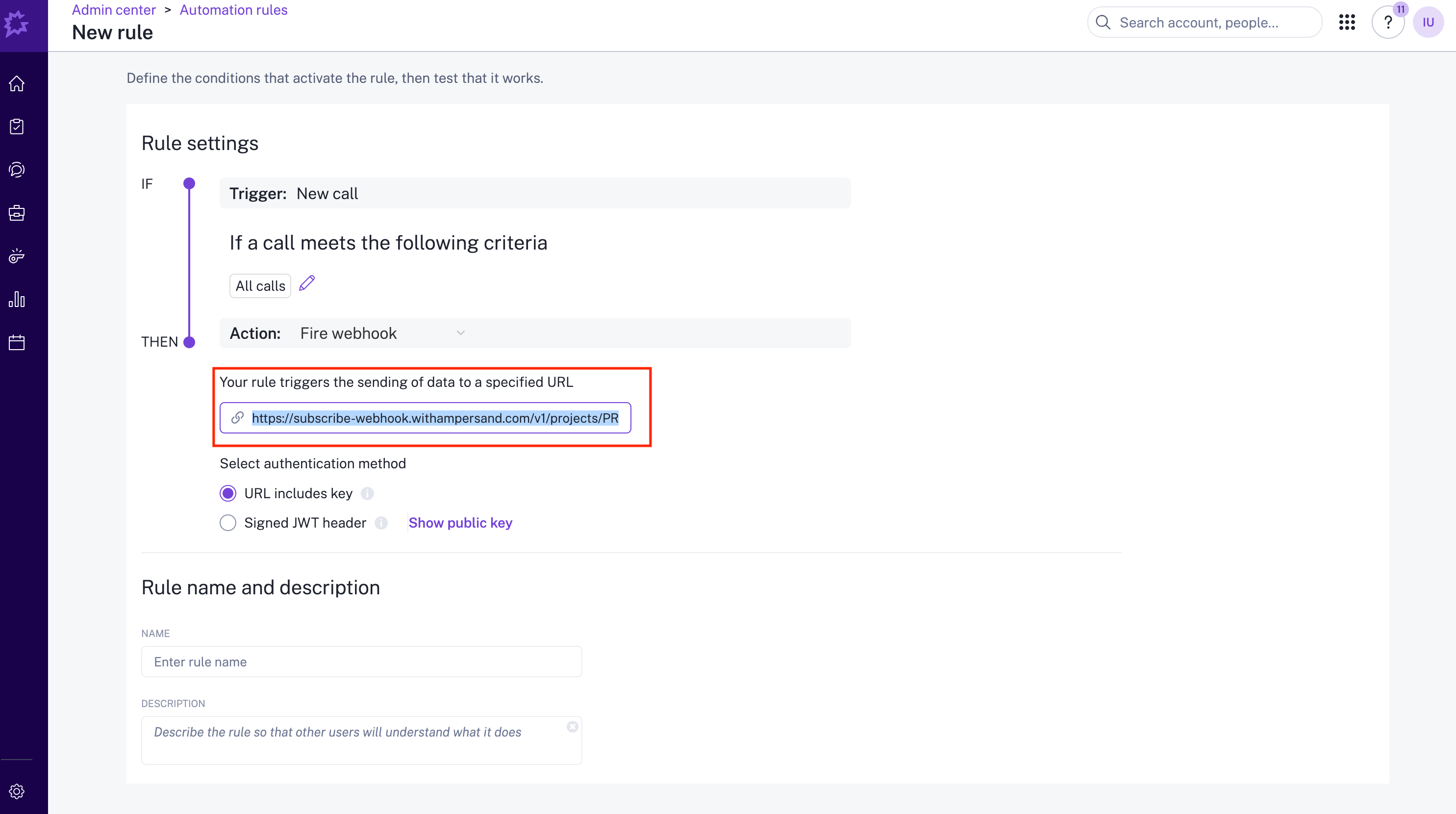
 5. Paste the webhook URL your developer gave you into the **Enter URL** field.
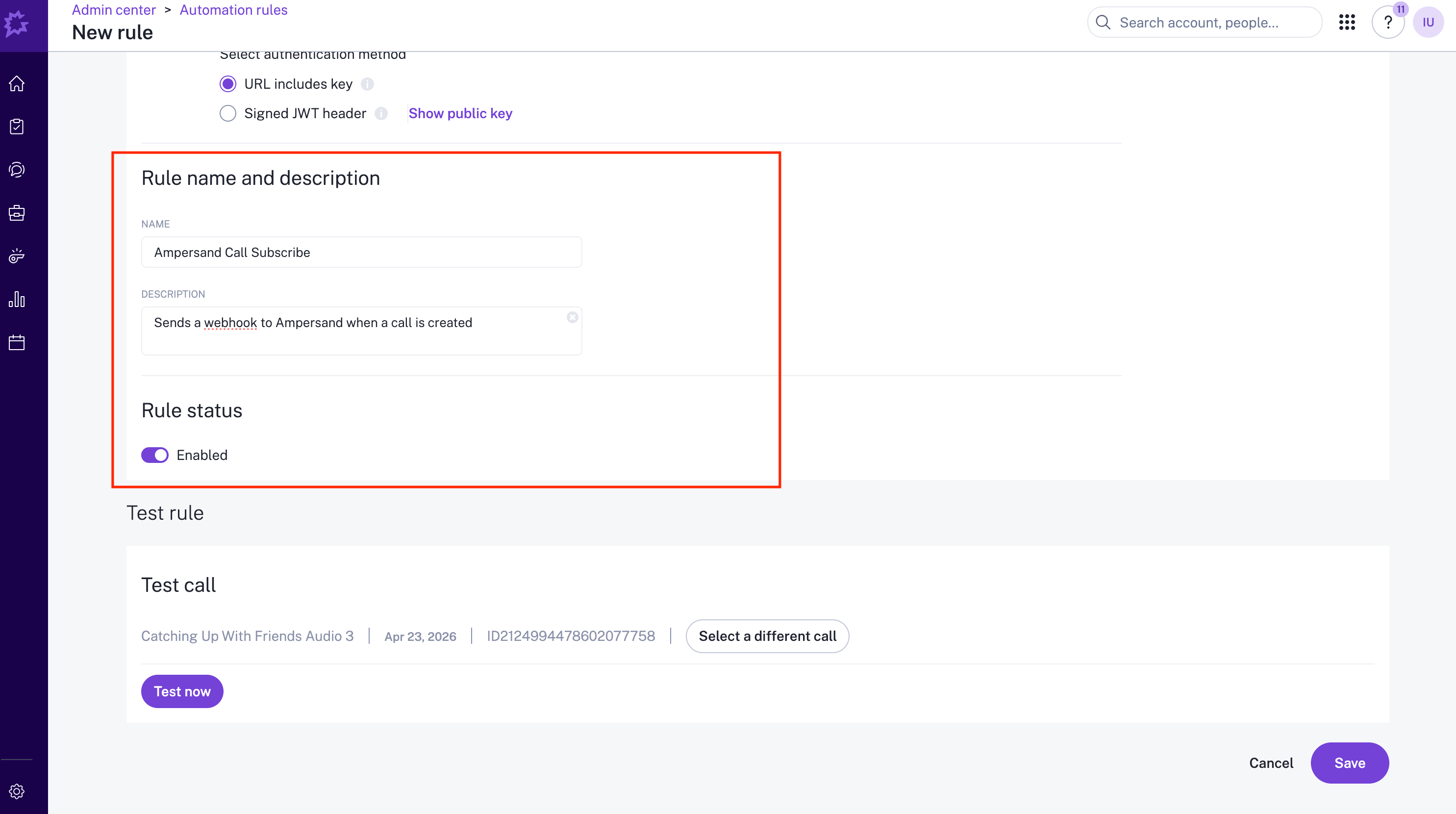
 6. Give the rule a descriptive name and toggle **"Rule Status"** to **Enabled**.
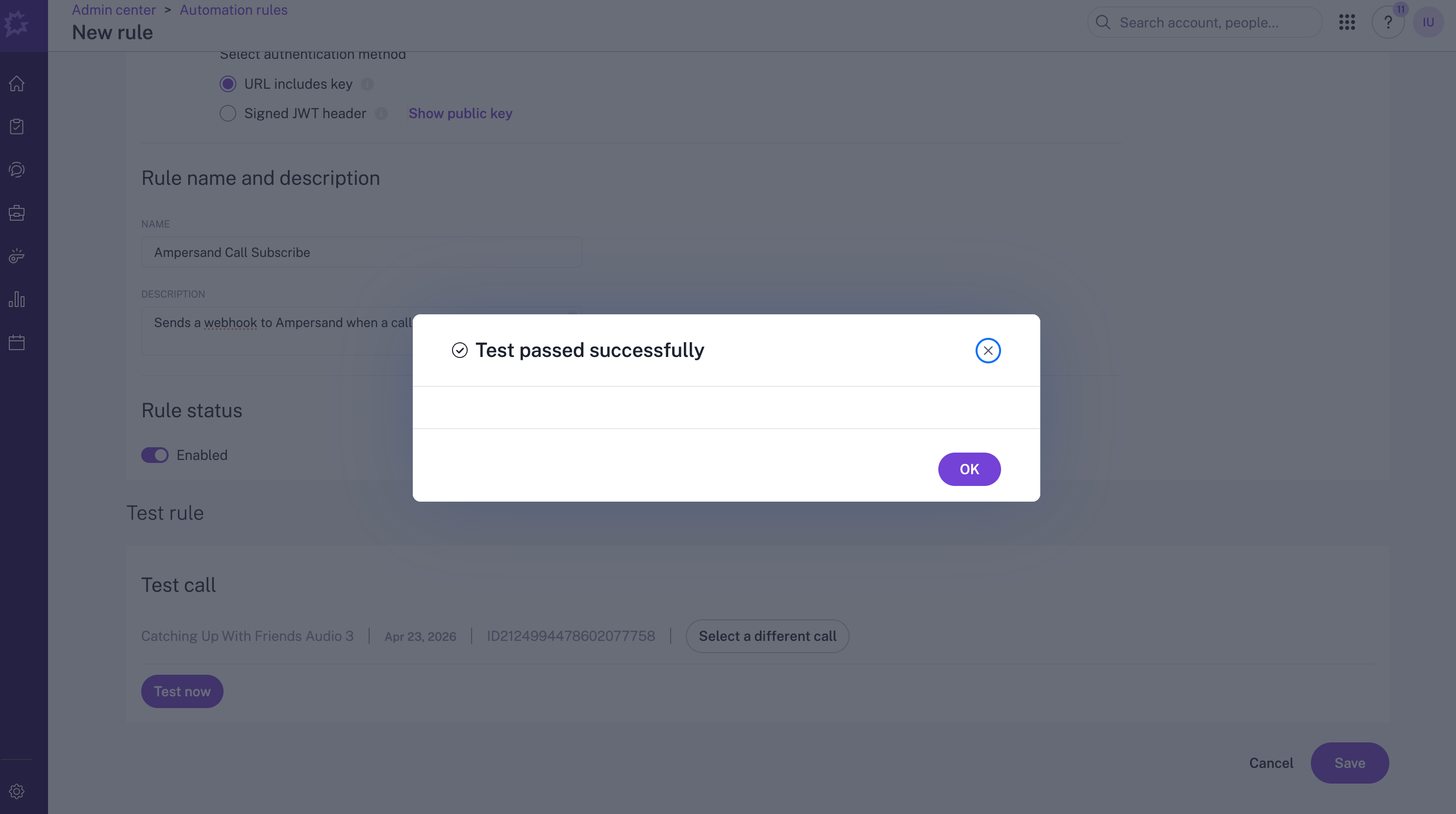
 7. (Optional) Send a test webhook and click Save.
 ## When to expect the webhook to fire
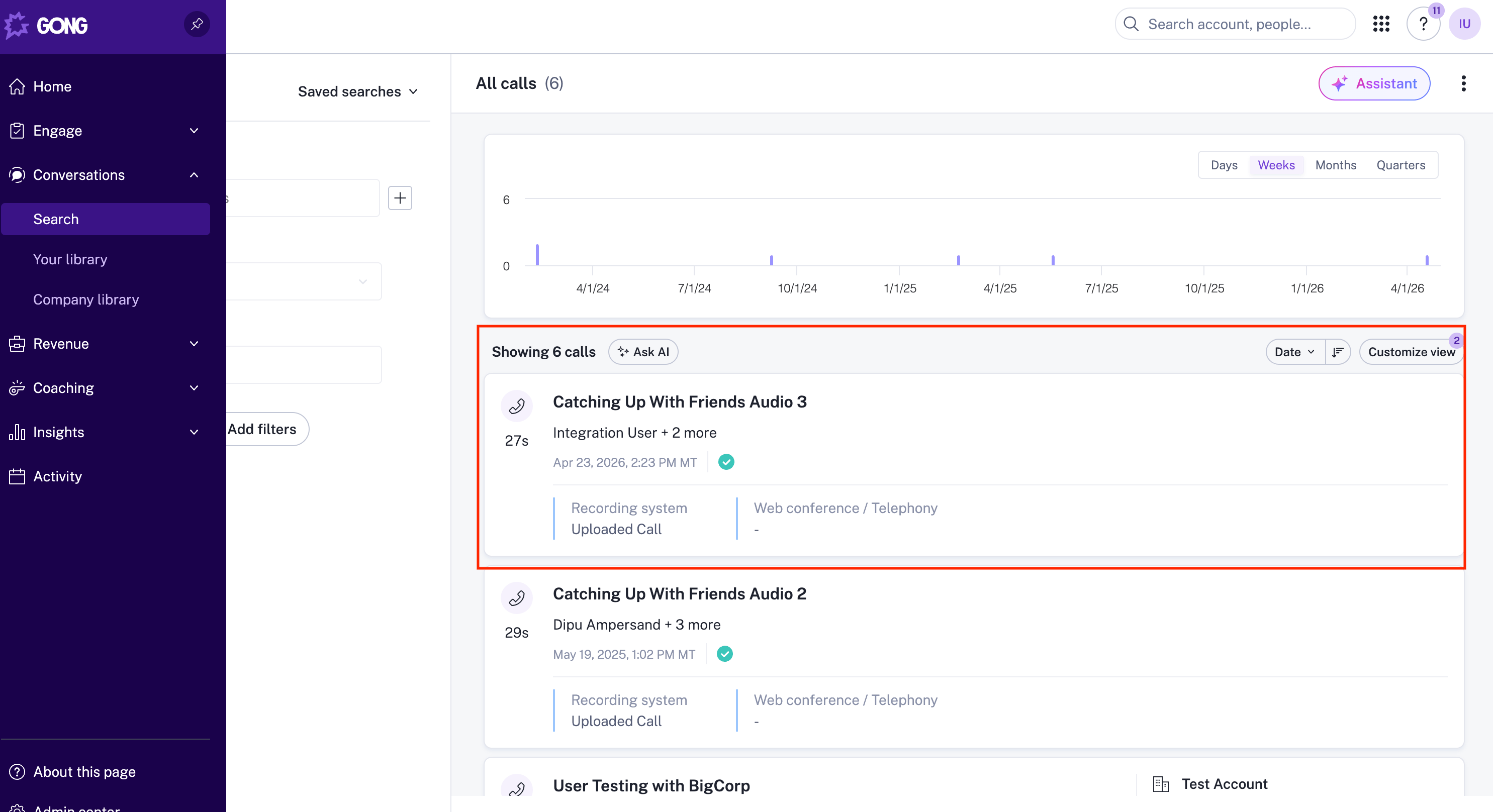
Gong fires the `call.created` webhook after a call has finished processing and appears in your Gong call library, which can take **several hours** after the call ends. You will not see events arrive immediately after a call wraps up — this is expected.
The screenshot below shows where a processed call shows up. Once a call reaches this state, the webhook has been (or will shortly be) sent.
## When to expect the webhook to fire
Gong fires the `call.created` webhook after a call has finished processing and appears in your Gong call library, which can take **several hours** after the call ends. You will not see events arrive immediately after a call wraps up — this is expected.
The screenshot below shows where a processed call shows up. Once a call reaches this state, the webhook has been (or will shortly be) sent.
 ## For official setup details, see:
* [Gong Automation Rules overview](https://help.gong.io/docs/introduction-to-automation-rules)
* [Send a webhook from an automation rule](https://help.gong.io/docs/create-a-webhook-rule)
## For official setup details, see:
* [Gong Automation Rules overview](https://help.gong.io/docs/introduction-to-automation-rules)
* [Send a webhook from an automation rule](https://help.gong.io/docs/create-a-webhook-rule)